
Settings
Manage your team, integrations, defaults, reports, notifications, and workspace memory.
Settings is where you configure your workspace. It's organized into seven tabs across the top.
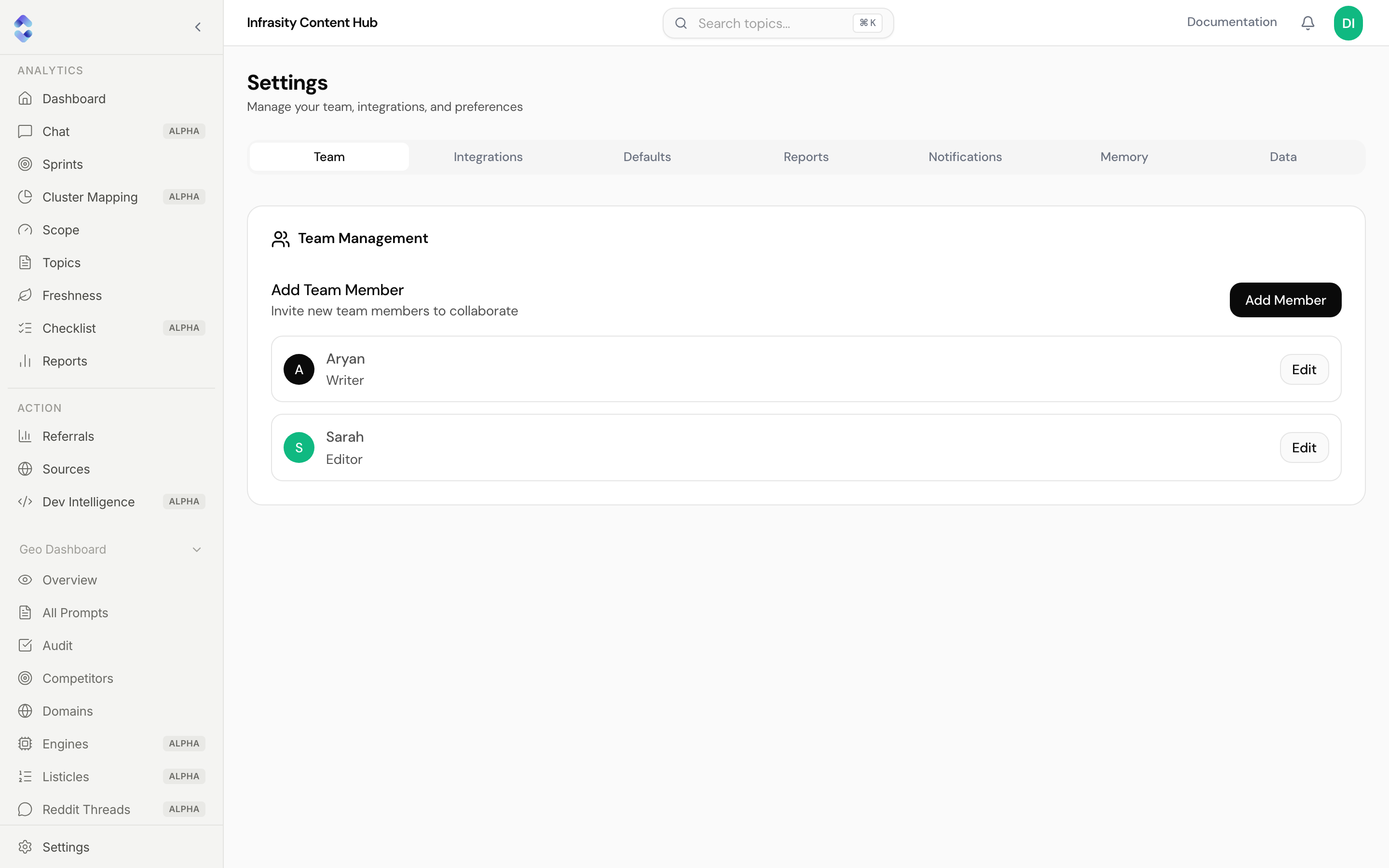
Team
Team Management lists everyone in your workspace with their role (for example Writer or Editor). Add Member invites someone, and Edit on a row changes their details. People you add here are the ones you can assign topics and sprints to.
Integrations
- API Integrations: connect third-party data sources used for keyword research and volume data. Connected services show a Connected label.
- AI Connections (MCP): connect Content Hub to AI assistants. See MCP.
For Google data, see Connect Google Search Console and Connect GA4.
Defaults
Default Settings for new work. Includes the priority scale (for example 0-3, Low to High or 0-1, Binary) and the date format (MM/DD/YYYY, DD/MM/YYYY, or YYYY-MM-DD).
Reports
Two cards configure scheduled and report output:
- Marketing MIS Configuration: the URL paths that feed each row of the Marketing MIS Report: blog, pricing, product pages, demo pages, homepage, and any custom rows you add (for example
/ssofor an "Enterprise Auth" row). Separate several paths with commas. - Checklist Slack Report: configures the weekly Checklist report sent to Slack.
Notifications
Connect Slack and create alert rules for your GEO clusters. See Notifications & Alerts.
Memory
Org Memory is a profile of your company that Content Hub uses as context: an overview, positioning, target audience, tone notes, products, industries, use cases, and a summary of your docs. Review it and keep it accurate, since it shapes what AI features know about you. A Refresh action rebuilds it from your site.
Refreshing can overwrite edits
It isn't confirmed whether a refresh preserves manual edits to Org Memory. Copy any text you've carefully written before refreshing.
Data
Data Management holds data-level actions for your workspace.