
Sprints
Plan and execute content in organized sprint cycles, think of sprints as your content team's weekly planning board.
A sprint is a time-boxed content planning cycle (typically one month) that groups every topic your team is working on into a single, trackable cycle, from the first idea through to a published, live article.
Instead of scattering content plans across spreadsheets, docs, and Slack threads, a sprint gives your team one shared view of what's being written, who owns it, what stage it's in, and how close the cycle is to done. Every topic you plan lives inside exactly one sprint at a time: when a topic moves between sprints, it's reassigned rather than duplicated, so there's always a single source of truth for where a piece of content stands.
Sprints are the backbone of Content Planning in Content Hub: the Dashboard, Freshness, and Topics views all read from the topics tracked inside your sprints, and a sprint's progress bar is a direct roll-up of how many of its topics have actually been published. A sprint doesn't end automatically on its date range: it's closed manually once the work is done, so the date range is for planning and display, not enforcement.
If you're new to Content Hub, read the first.
Sprint Overview

Trackers row
Quick links to external planning docs (content calendars, SEO reports, project trackers) pinned to the top of the view. Click + Add Link to pin a new one. These are just bookmarks, not synced data, so nothing here affects sprint numbers.
Filters
- All Owners: filter sprints by who's assigned to them.
- All Status: filter by sprint status.
Sprint cards
Each card shows the following.
Name & status
Name and status pill (Current Cycle, Upcoming, Pending). Status is set when the sprint is created or edited: it doesn't change automatically based on the date range.
Status pills are set manually
The current-cycle sprint (matching today's date) doesn't get called out automatically. It's marked with the "Current Cycle" pill only if that status was set manually when the sprint was created or edited.
Progress & stats
- Date range from the sprint's start and end dates.
- Progress bar and percentage: published topics ÷ total topics.
- "X of Y published" count.
- Four stat counters: Topics, Published, In Review, In Progress.
- Trend arrow (top or bottom right of the card): indicates whether the sprint's pace is trending up or down against expectations.
0-topic sprints still show a progress bar
A sprint with 0 topics still shows a progress bar at 0%: it's not hidden or flagged differently from a sprint that simply hasn't started adding topics yet, so a low topic count is worth checking before assuming a sprint is broken.
Owner & actions
- Owner avatar (initials) and a ⋮ menu for card-level actions.
- View Sprint link: opens the sprint's detail view.
Creating a Sprint
Click Create Sprint from the Sprints view to open the Create New Sprint modal.

Fields
Sprint Name (required)
Free text field. This is the label shown everywhere the sprint is referenced (dashboard, sprint list, and topic detail pages), so use a consistent naming convention. For example, Q1 2026 Content Sprint is clear at a glance; New Sprint is not. The placeholder in the UI shows e.g., Q1 2025 Content Sprint.
Start Date / End Date (required)
Two side-by-side date pickers in dd/mm/yyyy format. These define the sprint's active window and are used to calculate the "days left" counter and progress bar on the dashboard.
Sprints don't auto-close on the end date
The end date is for tracking and display only. Sprints must be closed manually from the sprint action menu. Setting an end date does not change the sprint's status or lock topics.
Sprint Goals (optional)
Multi-line text area for describing the sprint's main objectives. Goals are only visible in the sprint detail view: they provide team context and are not tracked or scored elsewhere. A strong goal states what "done" looks like, for example "9 published posts targeting developer-marketing keywords" rather than a generic description.
Sprint Name and dates are required
The modal won't submit without a Sprint Name, Start Date, and End Date. Sprint Goals is the only optional field.
Actions
- Create Sprint (primary, filled black button): creates the sprint and navigates to its detail view.
- Cancel (secondary, outlined button): discards all input and closes the modal.
Adding & Editing Topics
Adding a topic
Click New Topic from a sprint's view to open the Add Topic modal.
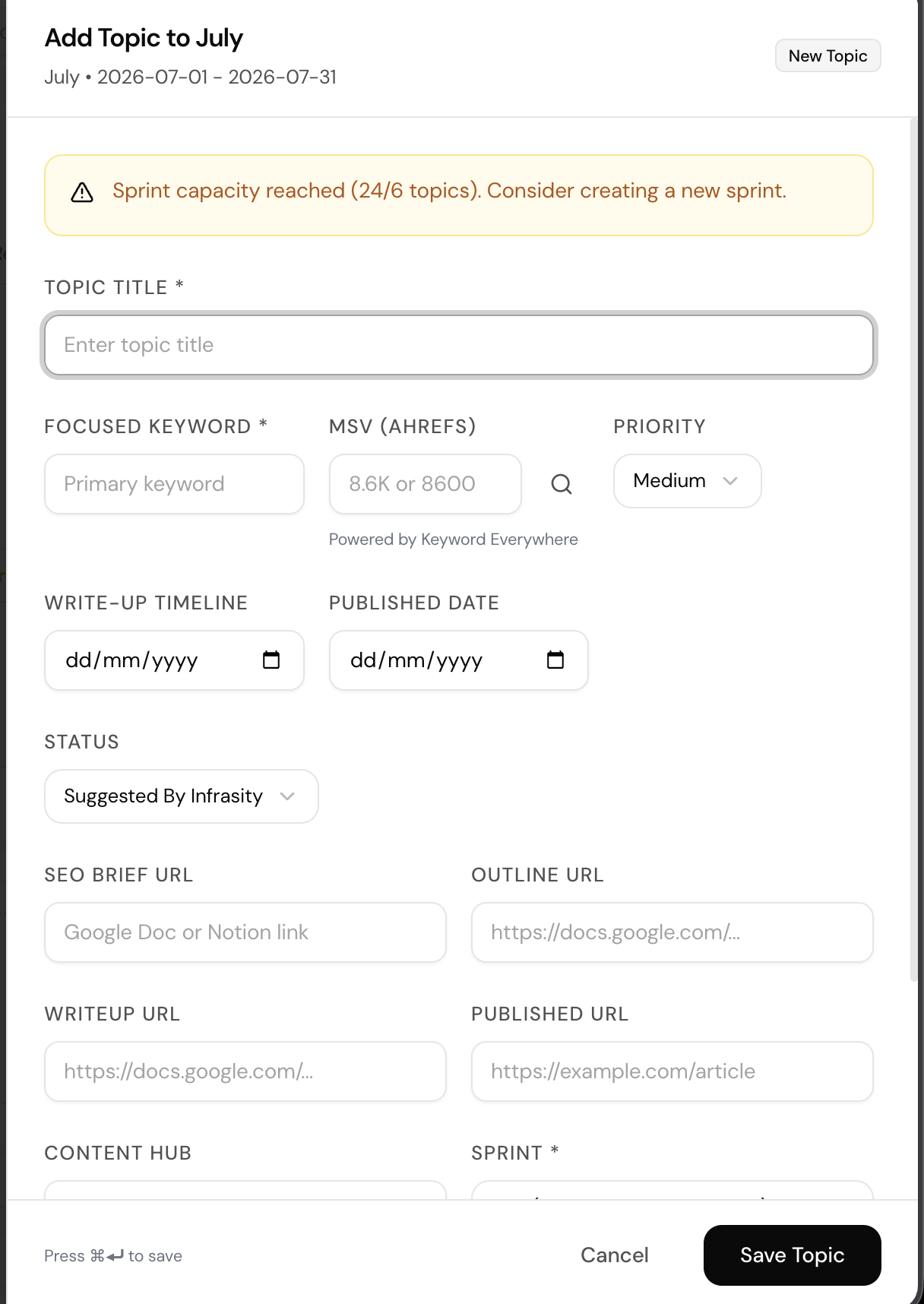
Topic Title (required) and Focused Keyword (required) are the only two fields needed to save a topic: everything else is optional at creation time.
Required fields
- Topic Title: free text label for the topic.
- Focused Keyword: the primary target keyword for the piece.
- Sprint (required): which sprint the topic is added to. Pre-filled with the sprint you opened the modal from.
Optional fields
- MSV (Ahrefs): monthly search volume, pulled in via the search icon next to the field. Powered by Keyword Everywhere.
- Priority: dropdown (e.g.
Medium). - Write-up Timeline / Published Date: date pickers in
dd/mm/yyyyformat. - Status: dropdown, defaults to
Suggested By Infrasity. - SEO Brief URL, Outline URL, Writeup URL, Published URL: links to the brief, outline, draft, and live article.
- Content Hub: comma-separated tags.
- Publish Location: where the piece will go live.
- Notes: free text for additional context.
Use Save Topic to create the topic, or Cancel to discard it. Save Topic can also be triggered with ⌘+Enter.
Sprints have a topic capacity warning
If a sprint is over its topic limit, the modal shows a banner like "Sprint capacity reached (24/6 topics). Consider creating a new sprint." This is advisory only. It doesn't block you from saving the topic to that sprint anyway.
Editing a topic
Open an existing topic to reach its detail view.

Topic Information
The left card shows the topic's core fields at a glance: Content Hub, Priority, MSV, Status, Sprint, and Author. Click Click to edit on the card, or the Edit button in the page header, to reopen the same form used to add the topic, pre-filled with its current values.
Edit modal title is unverified
It's not confirmed here whether the modal header changes from "Add Topic to [Sprint]" to something like "Edit Topic" when editing an existing topic, since only the add-flow header was captured.
Milestones
The right rail tracks five milestone stages, each shown with a clock icon until marked complete: Brief added, Outline ready, Write-up due, Scheduled date, Published date.
Milestone completion isn't confirmed to be automatic
It's not verified here whether a milestone (e.g. "Brief added") flips automatically once its matching URL field is filled in on the edit form, or whether it needs to be checked off separately.
Asset Links & Quick Actions
- Asset Links: supporting assets linked to the topic. Shows "No asset links added yet" until at least one is added.
- Quick Actions: shortcuts for Update dates and Assign author without opening the full edit form.
Page actions
Page-level actions in the header:
- Refresh: reloads the topic's data.
- Edit: opens the edit form.
- Duplicate: creates a copy of the topic.
- Archive: removes the topic from active views.
Duplicate behavior is unverified
It's not confirmed here whether Duplicate resets milestone progress and status on the copy, or carries them over from the original.
Topic Statuses & Stages
A topic moves through its lifecycle in two ways at once: a Status (its overall stage) and a set of Milestones (a checklist of concrete steps toward publish).
Status
Status is a single dropdown value on the topic, set on the Add/Edit Topic form above and shown as a pill on the topic's detail view.
Default value
New topics default to Suggested By Infrasity: the starting status for a topic that hasn't been picked up yet.
Full list unconfirmed
Full status list is not confirmed
Only the default status, "Suggested By Infrasity," has been directly observed so far. Later stages in the dropdown (likely something like Approved, In Progress, In Review, Scheduled, and Published) haven't been confirmed. Check the actual dropdown options before treating any specific list as final.
Milestones
Milestones are a fixed checklist shown on every topic's detail view, tracking the concrete deliverables that lead to publish.
The five stages
- Brief added: an SEO brief has been linked via the Brief URL field.
- Outline ready: an outline has been linked via the Outline URL field.
- Write-up due: a draft has been linked via the Writeup URL field.
- Scheduled date: a publish date has been set.
- Published date: the article is live, linked via the Published URL field.
Each milestone shows a clock icon until it's complete.
Completion behavior
Milestone completion trigger is not confirmed
It isn't confirmed whether filling in the matching URL field (e.g. adding a Writeup URL) automatically marks a milestone complete, or whether completion is a separate manual toggle.
After publish: Freshness
Once a topic is published, it's tracked by Freshness instead of by status: a Fresh or Stale pill based on time since publish, rather than a further lifecycle stage. So the full arc of a topic is: Status (idea → in progress) → Milestones (concrete steps to publish) → Freshness (ongoing health once live).
Importing from Blog
Click Import from Blog from a sprint's view to open the Import from Blog modal.

Source
The modal lists posts discovered from your connected blog, grouped under a source card:
- Source name (e.g.
company blog) and a count of how many posts were discovered (e.g.129 discovered). - sitemap: a pill showing how the source was discovered.
Blog source must be connected first
Posts only show up here if a blog source has already been connected. See Connect Blog / CMS for setup.
Selecting posts
What each row shows
- A checkbox to select it for import.
- The post title, linked out to the live post via an external-link icon.
- The publish date.
- A trailing number (e.g.
0) next to the date.
Trailing number next to date is unverified
Each row shows a number after the publish date (e.g. 0). It's not confirmed here what this represents. Worth checking before documenting it as a specific metric (views, existing topics linked, etc.).
Importing
Once you've checked the posts you want, click Import Selected to import them as topics into the current sprint.
Import behavior on existing topics is unverified
It's not confirmed here whether re-importing a post that's already been imported creates a duplicate topic or is deduplicated automatically.